You are using an out of date browser. It may not display this or other websites correctly.
You should upgrade or use an alternative browser.
You should upgrade or use an alternative browser.
big sky 3/8/12
- Thread starter hamdog
- Start date

Patrick
Well-known member
coldsmoke":51l07e9p said:Challenger was real nice on Wed. The wind kept refilling it. Probably ski a few hours tomorrow afternoon, I'll look for that snowboard and ask if it is Hamdog...
Checkout some old TRs from 2006 from around Big Sky.
I got these out in a quick search.
viewtopic.php?t=1678
viewtopic.php?f=3&t=1607

coldsmoke
New member
kingslug":7yz157va said:"...hear they may have direct flight from NY starting soon..nice!
http://www.bozemandailychronicle.com/ne ... 3ce6c.html

Falcon
New member
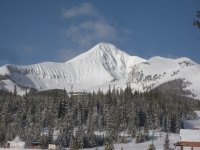
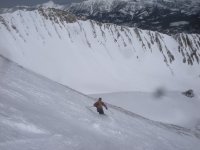
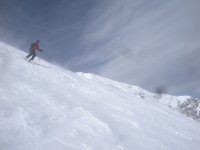
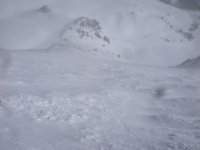
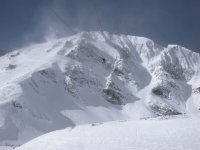
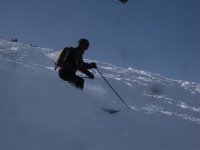
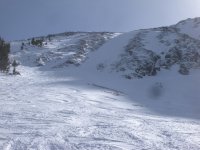
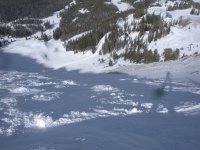
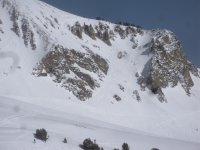
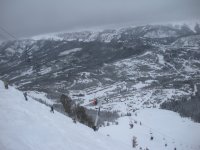
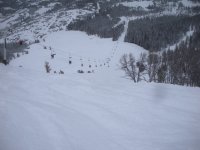
Skied Big Sky on 03/02, 03/03, 03/04 and 03/05. Snowbird on 03/06. Big Sky skied well. Overcast with some snow on Friday and Saturday. Clear Sunday and Monday. Challenger, the bowl, Marx and 1st gully were very good. Some rocks above 17 green on Challenger. A lot of A-Z lines on Sunday. I only made it through the Pinnacles. Checked out the Headwaters on Sunday. Not much snow in there. Only skied Cold Spring. Skrad, how was the hike to Three Forks? Heard the tram line was an hour on Sunday. Boyne for March is using a fast pass (Disneyland) for the tram on weekends. At 8:00 am, slots (3) are available every 15 minutes for that day. We will see how that plays out.
Any help for uploading pictures would be appreciated. I saw the comment on Faststone.org to resize. I don't know where to start.
Any help for uploading pictures would be appreciated. I saw the comment on Faststone.org to resize. I don't know where to start.
Attachments
-
 Big Sky and Snowbird with Paul 021 v2R.jpg194.4 KB · Views: 5,063
 -
 Big Sky and Snowbird with Paul 131.JPG185.4 KB · Views: 5,075
 -
 Big Sky and Snowbird with Paul 128.JPG179.8 KB · Views: 5,106
 -
 Big Sky and Snowbird with Paul 106.JPG166.6 KB · Views: 5,041
 -
 Big Sky and Snowbird with Paul 097.JPG192.5 KB · Views: 5,096
 -
 Big Sky and Snowbird with Paul 091.JPG171.1 KB · Views: 5,133
 -
 Big Sky and Snowbird with Paul 083.JPG196 KB · Views: 5,086
 -
 Big Sky and Snowbird with Paul 071.JPG188.9 KB · Views: 5,065
 -
 Big Sky and Snowbird with Paul 054.JPG188 KB · Views: 5,081
 -
 Big Sky and Snowbird with Paul 046.JPG193.2 KB · Views: 5,070
 -
 Big Sky and Snowbird with Paul 019.JPG197.8 KB · Views: 5,115
 -
 Big Sky and Snowbird with Paul 018.JPG189.4 KB · Views: 5,107

SkiSwami
New member
Four of us roll into Big Sky on Wednesday. Taking the steeps clinic with Dan Egan and then heading to Bridger for next Sun & Mon. Looks like Bridger could be a disaster if the weather turns cold again (which might not happen). How's it look for Big Sky through this week? Hard snow or still mostly Packed powder in most places? Trying to decide what skis to wax up.
Boy what a difference a week makes. Looks like I can leave the real powder boards home, but there should be some good steep skiing on the north facing slops I'd imagine. Appreciate any more info on conditions. \ /
/
Boy what a difference a week makes. Looks like I can leave the real powder boards home, but there should be some good steep skiing on the north facing slops I'd imagine. Appreciate any more info on conditions. \
/
Marc_C
Active member
Either...Falcon":iehwxlrh said:Any help for uploading pictures would be appreciated. I saw the comment on Faststone.org to resize. I don't know where to start.
Upload the image here as an attachment:
. compose a post
. scroll to below the edit window and click on the Upload Attachment tab
. browse for a file on your PC with the browse button then click "Add the file"
. to display the photo within your post, click on the "Place inline" button after the upload completes.
Uploaded pics cannot be larger than 1024 pixels on the longest dimension or larger than 200K in file size. JPG is the best format to use. Since you probably don't want to modify your original photo, make a copy and resize/upload the copy. Faststone was mentioned because it is one of the easier photo editors to use to resize....and it's free.
...or....
The other option is to upload your photo to a photo sharing site - Picasa, Photobucket, Shutterfly, et al. Using this method does require you to understand how the photo sharing site puts photos on the web since you will need to get the URL of the photo (the jpg file itself, not the html page it resides on in the photo site), then in your post, click on the "Img" button above the post window and paste the url of your photo between the img tags. Using this method does not require resizing either image size, as the forum software will autoscale very large photos. However you'd still force a download of the full file and folks may not be happy with your 3MB images, esp anyone paying for bandwidth. If you don't know what any of this means, then perhaps the attachment method is best.

baldyskier
Member
Marc_C":3dvlxqad said:Either...Falcon":3dvlxqad said:Any help for uploading pictures would be appreciated. I saw the comment on Faststone.org to resize. I don't know where to start.
Upload the image here as an attachment:
. compose a post
. scroll to below the edit window and click on the Upload Attachment tab
. browse for a file on your PC with the browse button then click "Add the file"
. to display the photo within your post, click on the "Place inline" button after the upload completes.
Uploaded pics cannot be larger than 1024 pixels on the longest dimension or larger than 200K in file size. JPG is the best format to use. Since you probably don't want to modify your original photo, make a copy and resize/upload the copy. Faststone was mentioned because it is one of the easier photo editors to use to resize....and it's free.
...or....
The other option is to upload your photo to a photo sharing site - Picasa, Photobucket, Shutterfly, et al. Using this method does require you to understand how the photo sharing site puts photos on the web since you will need to get the URL of the photo (the jpg file itself, not the html page it resides on in the photo site), then in your post, click on the "Img" button above the post window and paste the url of your photo between the img tags. Using this method does not require resizing either image size, as the forum software will autoscale very large photos. However you'd still force a download of the full file and folks may not be happy with your 3MB images, esp anyone paying for bandwidth. If you don't know what any of this means, then perhaps the attachment method is best.
More detail on reducing file size using FastStone:
Copy all desired files into a separate folder.
Open FastStone Image Viewer
On left side, click on folder with copies of photos.
On right side, click on first photo file once to select it.
Type Ctrl R (shortcut for resize)
Type 1024 in longest side under Pixels (this will be width for horizontal shots, height for vertical shots). Make sure Preserve Aspect Ratio box is checked on bottom of window.
Click "OK" to close dialog box
You should be back on right side of main FastStone window with the filename you've been working with highlighted.
Type ctrl S (shortcut to Save reduced file)
Click "Options" in new dialog box.
Note size of New file on right side of dialog box.
If still above 200 KB, click down arrow on right side of Quality slider.
Keep clicking down arrow until New file size gets below 200KB (allow enough time for software to update)
Click OK to return to previous dialog box.
Change filename for current file if desired (I add an r to identify it as reduced).
Go to next file in list and repeat procedure.
When uploading files into LiftLines, start with last file with its caption, and work your way back so that the file you want first ends up on bottom of list. Click "+" sign after loading each picture.
Click preview button and make adjustments as necessary.
The "walk" to Three Forks is sketchy in places. Stepped carefully/ there were always steps but they were icy in places. Bring a pack an put your skis on the right side so they don't catch on the rock. The trickiest spot is made easier by the presence of a metal mesh that you can grab onto. Just take it slow and you will make it. I took touring boots with Vibram soles last year/ felt more secure.
The snow is firm and conditions technical. Still, more fun than wet powder (WA) or frozen crust (Snowbird last Monday save for Upper Silver Fox and Great Scott).
The snow is firm and conditions technical. Still, more fun than wet powder (WA) or frozen crust (Snowbird last Monday save for Upper Silver Fox and Great Scott).
kingslug":1wbmoa7a said:Hmm..United will only fly direct in the summer...and out of Jersey....good this does me not.....
Other articles on that site indicate it will run in winter months as well.
Direct-flight services will run during peak seasons of June through September and late December through March, said Scott Humphrey, airport deputy director.
http://www.bozemandailychronicle.com/ne ... 03286.html
baldyskier
Member
You're welcome. Nice pictures! Looks like some steep terrain, and not much competition for it.Falcon":k8lq3gos said:Thanks Marc C and Baldyskier for the info. Great help.